
How to Setup IPTV on Any Device — Every App and Smart TV Covered
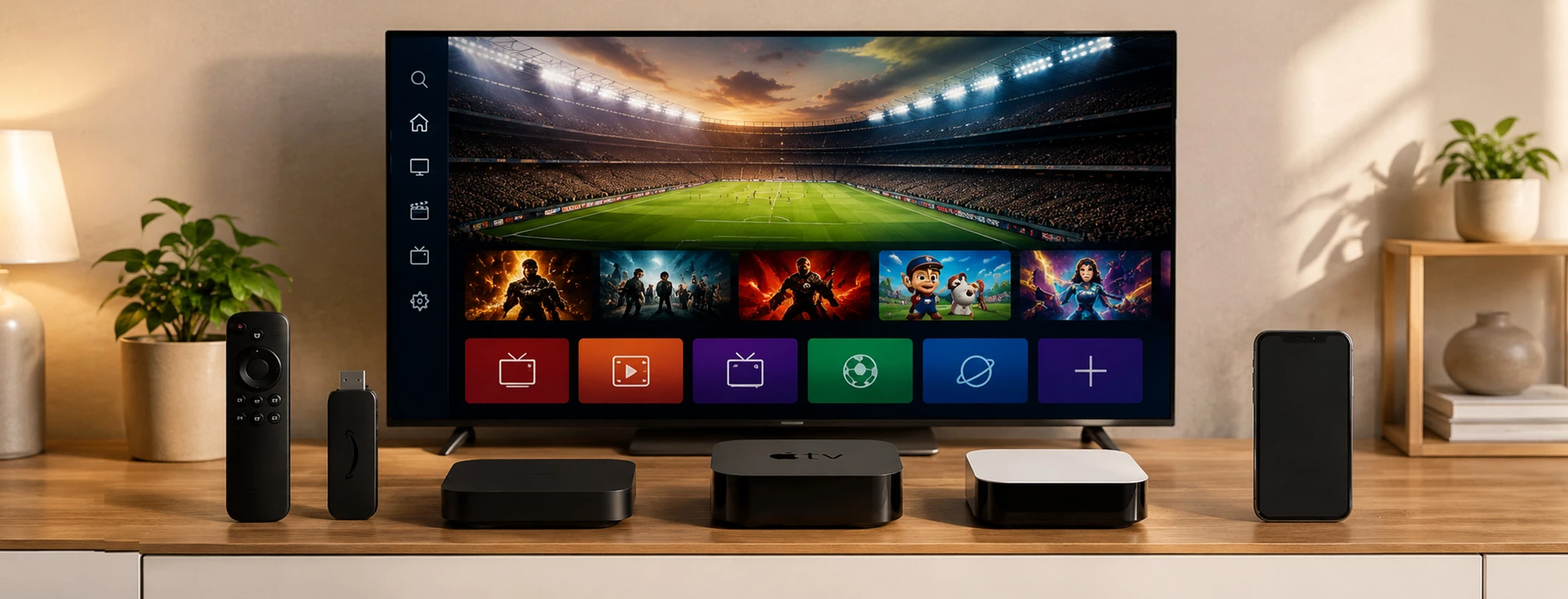
Whether you’re using a Firestick, an Android box, an LG or Samsung smart TV, an Apple device, a MAG box, or a player app like Smarters Pro, TiviMate, or Kodi — the setup follows the same basic idea with a few small differences. Pick your device below and start watching in minutes.
How IPTV Installation Works Across Devices
Almost every IPTV app asks for your login in one of three ways. Once you understand these, every setup on this page feels familiar.
M3U URL
A single link that loads your entire channel list into any player app in one step.
Xtream Codes
A username, password, and server URL combination used by most modern IPTV apps.
MAC Address
Some smart TV and box apps register your device’s MAC address instead of a normal login.
Always use a legitimate, authorized IPTV provider. A properly licensed service gives you stable servers, a working TV guide, and real support, which makes every install on this page smoother and far more reliable.
Setup Instructions by Device
Find your device below and follow the numbered steps to get your channels loaded.
Firestick
Android
LG TV
Samsung TV
Apple Devices
MAG / Formuler / Smart STB
Chromecast
Windows PC
Player Apps
FAQ
Amazon Firestick & Fire TV
Works the same on Fire TV Stick 4K, Fire TV Cube, and built-in Fire TV televisions.
- Go to Settings > My Fire TV > Developer Options and turn on Apps from Unknown Sources.
- Search for Downloader in the Fire TV search bar and install it.
- Open Downloader, enter the official download link for your IPTV app (such as IPTV Smarters Pro), and download it.
- Select Install when the file finishes, then open the app.
- Log in with your Xtream Codes details or paste your M3U URL, and let your channels load.
Android Phones, Boxes & TVs
Covers Android phones, tablets, Android TV boxes, and Android-powered smart TVs.
- Open the Google Play Store on your Android device.
- Search for your IPTV app, such as IPTV Smarters Pro, TiviMate, or OTT Navigator, and install it.
- Open the app and choose to add a new playlist or user.
- Enter your Xtream Codes login or paste your M3U URL.
- Confirm and let the channel list and TV guide load.
LG Smart TVs (webOS)
Some apps use your TV’s MAC address for activation instead of a normal login.
- From your LG TV home screen, open the LG Content Store.
- Search for an IPTV app like Smart IPTV or IPTV Smarters and install it.
- Open the app and note the MAC address it shows on screen.
- On a computer or phone, visit the app’s official website, enter that MAC address, and upload your M3U URL.
- Reload the app on your TV to see your channels appear.
Samsung Smart TVs (Tizen)
Very close to LG’s process, using the Samsung Smart Hub app store.
- Press the Home button and open the Samsung App Store (Smart Hub).
- Search for Smart IPTV or IPTV Smarters and install it.
- Launch the app and copy down the MAC address if the app asks for one.
- Go to the app’s official website, enter the MAC address, and upload your M3U link, or log in directly with Xtream Codes if supported.
- Restart the app to load your full channel lineup.
Apple Devices (iPhone, iPad & Apple TV)
No sideloading required — every app installs cleanly through the App Store.
iPhone & iPad
- Open the App Store, search for an app like IPTV Smarters Pro, GSE Smart IPTV, or iPlayTV, and install it.
- Open the app, add a new playlist, and enter your Xtream Codes login or M3U URL.
- Confirm and your channels will load, ready to watch on the go.
Apple TV
- Open the App Store, then search for and install iPlayTV or another supported IPTV player.
- Launch the app, add a new playlist using your M3U URL or Xtream Codes details, and let it load.
- Enjoy a full big-screen IPTV experience through your Apple TV.
MAG Box, Formuler Z7+ & Smart STB
These work with a portal URL instead of a normal login.
MAG Box
- Go to Settings > System Settings > Servers > Portals.
- Enter the portal URL your provider gave you in the Portal 1 field, save the settings, and restart the box.
- After it reboots, your channels will load automatically. Make sure your provider has registered your box’s MAC address first.
Formuler Z7+
- Open the built-in MYTVOnline player, go to settings, and add a new portal or playlist using the URL your provider supplied.
- Save and reload, and your channel list will appear.
- Since it’s Android-based, you can also install other IPTV apps and log in with Xtream Codes or an M3U link.
Smart STB
- Install the app, note the MAC address it displays, and give that MAC to your provider so they can register it.
- Enter the portal URL in the app’s settings and reload.
- Your channels will load just as they would on a real MAG box.
Google Chromecast
Setup depends on whether you own a Chromecast with Google TV or a basic Chromecast.
- For Chromecast with Google TV, open the Play Store, install an app like IPTV Smarters Pro, and log in with your details.
- For a basic Chromecast, open a cast-supported IPTV app on your phone instead.
- Tap the Cast icon inside the app and select your Chromecast.
- Choose a channel, and it will play on your TV through the phone.
Windows PC
Turn your PC into a full IPTV viewer — handy for testing a new subscription quickly.
- Install your chosen app, such as IPTV Smarters Pro, My IPTV Player, or VLC.
- Open the app and find the option to add a playlist or open a network stream.
- Paste your M3U URL or enter your Xtream Codes login.
- Add your EPG link if the app asks for one, then load your channels.
Setup for Popular IPTV Player Apps
Tap an app to see exactly how to add your playlist. All of them load the same IPTV subscription.
IPTV Smarters Pro
IBO Player
OTT Navigator
GSE Smart IPTV
My IPTV Player
Smart IPTV (SIPTV)
iPlayTV (Apple TV)
SET IPTV
Perfect Player
Net IPTV
Kodi
Purple Player
VLC Media Player
TiviMate
Duplex IPTV
IPTV Extreme
Common Installation Problems and Fixes
Wrong login details: Double-check every login detail first, since a single wrong character in a username, password, or URL will block the connection.
MAC not registered: For MAC-based apps, make sure your MAC address is registered and your activation is active.
Buffering channels: If channels load but keep buffering, the issue is almost always your internet speed rather than the app itself.
Frequently Asked Questions
? Which device is best for installing IPTV?
? Why does my smart TV app ask for a MAC address instead of a login?
? Can I use the same IPTV subscription on different devices and apps?
? Do I need to sideload apps on every device?
? What’s the difference between an M3U URL and Xtream Codes login?
Installing IPTV on any device really comes down to the same simple idea: get your app, then load your channels with an M3U link, Xtream Codes login, or a registered MAC address. Once you spot that pattern, the steps for a Firestick, LG TV, Apple TV, or any player app all start to feel familiar and easy.
Pick the section that matches your device or app, follow the steps in order, and use an authorized IPTV provider for the smoothest experience. If something doesn’t load, it’s almost always a small typo or an internet issue, so a quick double-check usually gets you watching in no time.
Get Your IPTV Subscription UK Plan Today
Choose the IPTV subscription plan that fits your needs and start streaming on your preferred device using this guide.